How To Measure Code Coverage in Playwright Tests
Learn how to measure and increase Playwright code coverage and ensure your tests stay reliable.
Imagine you’re test-driving a new car. You try every drive mode: reverse, park, sport, ultra, and everything works perfectly. But you never test the automatic emergency braking system. Would you really say all the potential fault points were covered? I would say, probably not.
That’s how end-to-end (E2E) testing works in software. Your buttons may click, navigation may flow, and forms may submit, but how much of the underlying code actually ran during those tests? Ten percent? Twenty? Maybe half? If large parts of your codebase remain untouched, hidden bugs could still be waiting to surface.
This is where code coverage comes in. It measures how much of your application code executes when your Playwright tests run, giving you visibility into what’s truly being tested. In this guide, you’ll learn how Playwright handles code coverage, how to set it up, interpret reports, troubleshoot common issues, and follow best practices to make your testing process more reliable.
How Playwright Handles Code Coverage
You can measure code coverage either by using Playwright’s built-in Coverage API or by integrating with external tooling that processes the raw data. Let’s look at both approaches.
Built-in API
Playwright provides a dedicated page.coverage API that communicates directly with the V8 JavaScript engine to collect execution data from your test runs. The outputs are raw and low-level, so reports are in the form of byte offsets and function ranges instead of readable line numbers.
Here’s an example of what the data looks like:
[
  {
    "url": "bundle.js",
    "functions": [
      {
        "functionName": "...",
        "ranges": [{ "startOffset": 120, "endOffset": 300, "count": 1 }]
      }
    ]
  }
]
The page.coverage API can track both JavaScript and CSS execution, allowing you to analyze how much of your frontend code logic and styling was actually exercised during test execution. The coverage code is embedded within your test because coverage collection happens in real time while your Playwright tests interact with the page.
Typical snippets look like this:
await page.coverage.startJSCoverage();
await page.coverage.startCSSCoverage();
// ... run your test actions here ...
const jsCoverage = await page.coverage.stopJSCoverage();
const cssCoverage = await page.coverage.stopCSSCoverage();
However, it’s important to note that Playwright’s coverage APIs currently work only in Chromium-based browsers such as Chrome, Brave, or Edge.
External Tools You can integrate external tools to transform Playwright’s raw V8 data into readable coverage reports. These integrations are meant to process the Playwright’s API output into visual or structured formats; they don't replace the API.
One popular approach is to use a tool like v8-to-istanbul, which converts the raw coverage data into Istanbul/NYC format. This produces results in formats like HTML (HyperText Markup Language) and LCOV (Line Coverage Format) for easier analysis.
Example LCOV output:
SF:src/components/Button.js
FN:10,(anonymous_0)
FN:20,handleClick
FNDA:1,handleClick
FNDA:0,(anonymous_0)
DA:12,1
DA:21,1
DA:25,0
LH:2
LF:3
end_of_record
To generate the HTML report, you run:
npx nyc report --reporter=html
The HTML output usually gets sent to the /coverage/index.html file path, which displays color-coded lines: green for covered and red for missed.
Another option is to embed plugins like babel-plugin-istanbul or vite-plugin-istanbul directly in your test setup. These tools instrument the code in real time, converting coverage data into NYC format as your tests run.
module.exports = {
  presets: [
    // Your existing presets (e.g. '@babel/preset-env', '@babel/preset-react')
  ],
  plugins: [
    (process.env.NODE_ENV === "test" || process.env.VITE_COVERAGE) && [
      "babel-plugin-istanbul",
      { exclude: ["**/*.spec.js", "**/node_modules/**"] },
    ],
  ].filter(Boolean),
};
Even with the coverage data generated in human-readable formats, you can use tools such as Currents to organize reports, especially when you’re dealing with large test suites or parallel executions. Currents centralizes metrics into dashboards, making it easier to interpret results and track test quality over time.
Now that you have an overview of how Playwright collects and processes coverage, the next step is to set it up in practice using its built-in API.
Setting Up Code Coverage in Playwright
Let's use a small demo project to work through how Playwright code coverage works in practice. You'll build a simple web app, write Playwright tests for different user flows, and compare how each one affects your coverage report.
About the Demo App
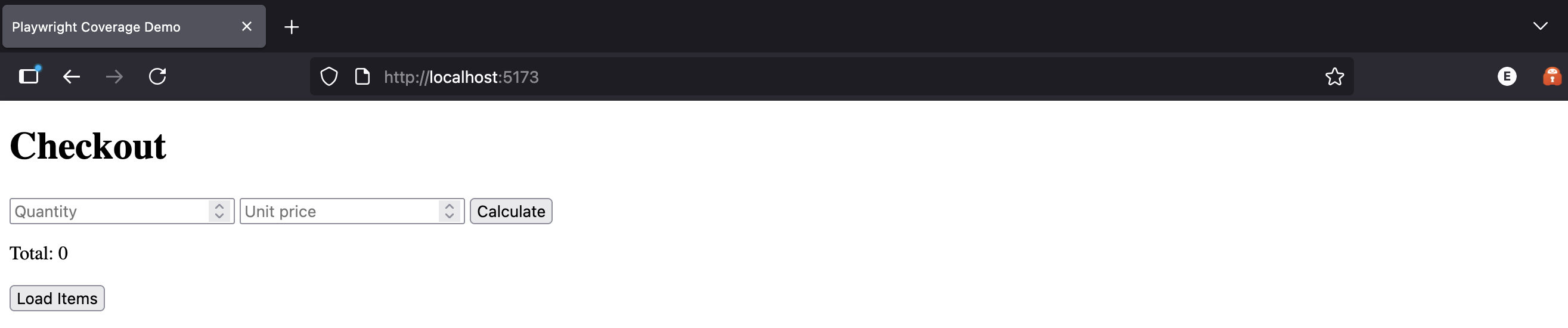
The demo app is a lightweight Node.js checkout form that lets users enter a quantity and price, calculates the total, and loads a mock list of items.
For this walkthrough, the focus is on two realistic test scenarios:
- A happy path where inputs are valid and the total is calculated
- An error path when users enter invalid or negative numbers
The app also includes minimal CSS so you can see Playwright’s CSS coverage in action.
You can checkout the code for the demo app here.
Prerequisites
Ensure you have the following installed and available on your computer:
- Node.js: Install the latest LTS version.
- Node package manager (npm): It comes bundled with Node.js.
- Playwright test runner
In your project root, create a new folder and install Playwright with Chromium support:
mkdir playwright-coverage-demo
cd playwright-coverage-demo
npm install --save-dev @playwright/test
npx playwright install chromium
- Static server
You’ll need a simple static server to serve the demo app. In this tutorial, you’ll use http-server:
npm install --save-dev http-server
- TypeScript support for tests
Install TypeScript so your .spec.ts files compile properly:
npm install --save-dev typescript
With the prerequisites boxes checked, let’s get started.
Step 1: Populate Dependency Files
a. Having followed the prerequisites carefully, you should already have a package.json file. Add the following scripts section:
"scripts": {
  "dev": "npx http-server -c-1 -p 5173 .",
  "test": "playwright test --project=chromium"
}
Your package.json should now look like this:
{
  "devDependencies": {
    "@playwright/test": "^1.56.0",
    "http-server": "^14.1.1",
    "typescript": "^5.9.3"
  },
  "scripts": {
    "dev": "npx http-server -c-1 -p 5173 .",
    "test": "playwright test --project=chromium"
  }
}
b. Next, in the root of your project, create a tsconfig.json file. This file controls how your Playwright TypeScript tests are compiled.
{
  "compilerOptions": {
    "target": "ES2022",
    "module": "ES2020",
    "moduleResolution": "Node",
    "strict": true,
    "types": ["@playwright/test"]
  }
}
c. Still in your project root, create a playwright.config.ts file to define how Playwright runs your tests.
// playwright.config.ts
import { defineConfig, devices } from "@playwright/test";
export default defineConfig({
  testDir: "./tests",
  // Run only on Chromium so page.coverage works
  projects: [
    {
      name: "chromium",
      use: { ...devices["Desktop Chrome"] },
    },
  ],
  // Optional: stricter test discovery
  // testMatch: /.*\.spec\.ts/,
});
Step 2: Create the App
a. Inside the playwright-coverage-demo directory, create the folders and files that will make up the demo app.
Run the following commands from your terminal:
  mkdir -p src/{utils,ui,services}
  touch src/app.js src/utils/math.js src/ui/validate.js src/services/api.js index.html styles.css
After running them, your project should look like this:
playwright-coverage-demo/
│
├── playwright.config.ts
├── package.json
├── tsconfig.json
├── src/
│   ├── app.js
│   ├── utils/math.js
│   ├── ui/validate.js
│   └── services/api.js
├── index.html
└── styles.css
This gives Playwright something real to test while keeping the code simple enough to read at a glance.
b. Populate the folders and files with code.
index.html hosts the form checkout and buttons that your Playwright tests will interact with.
<!doctype html>
<html lang="en">
  <head>
    <meta charset="utf-8" />
    <title>Playwright Coverage Demo</title>
    <link rel="stylesheet" href="./styles.css" />
    <script type="module" src="./src/app.js"></script>
  </head>
  <body>
    <h1>Checkout</h1>
    <form id="order-form">
      <input id="qty" type="number" min="0" placeholder="Quantity" />
      <input
        id="price"
        type="number"
        min="0"
        step="0.01"
        placeholder="Unit price"
      />
      <button id="calc" type="button">Calculate</button>
      <p id="error" class="hidden">Invalid input</p>
    </form>
    <p>Total: <span id="total">0</span></p>
    <button id="load-items" type="button">Load Items</button>
    <ul id="items"></ul>
  </body>
</html>
styles.css defines simple visual feedback states, including a hidden element and error color for CSS coverage tracking.
.hidden {
  display: none;
}
.error {
  color: red;
}
src/app.js handles user interactions and ties all modules together: validation, math logic, and mock API requests.
import { calculateTotal } from "./utils/math.js";
import { validateInputs } from "./ui/validate.js";
import { fetchItems } from "./services/api.js";
const qtyEl = document.getElementById("qty");
const priceEl = document.getElementById("price");
const calcBtn = document.getElementById("calc");
const totalEl = document.getElementById("total");
const errEl = document.getElementById("error");

calcBtn.addEventListener("click", () => {
  const qty = Number(qtyEl.value);
  const price = Number(priceEl.value);
  const { ok } = validateInputs(qty, price);
  if (!ok) {
    errEl.classList.remove("hidden");
    errEl.classList.add("error");
    return;
  }
  errEl.classList.add("hidden");
  const total = calculateTotal(qty, price);
  totalEl.textContent = String(total);
});

document.getElementById("load-items").addEventListener("click", async () => {
  const list = document.getElementById("items");
  list.innerHTML = "";
  const items = await fetchItems();
  for (const item of items) {
    const li = document.createElement("li");
    li.textContent = item.name;
    list.appendChild(li);
  }
});
src/utils/math.js implements basic calculation logic, including a total function and a discount helper that isn’t deliberately triggered in the current tests.
export function calculateTotal(qty, price) {
  if (qty < 0 || price < 0) return 0; // simple guard
  if (qty === 0) return 0; // edge case we will NOT cover
  return qty * price;
}
// Unused on purpose to show uncovered code
export function legacyDiscount(total) {
  return total * 0.9;
}
src/ui/validate.js performs simple input validation and introduces a few branches for testing coverage across different conditions.
export function isValidNumber(n) {
  return typeof n === "number" && Number.isFinite(n);
}
export function validateInputs(qty, price) {
  if (!isValidNumber(qty) || !isValidNumber(price)) {
    return { ok: false, reason: "NaN" };
  }
  if (qty < 0 || price < 0) {
    return { ok: false, reason: "negative" };
  }
  return { ok: true };
}
src/services/api.js mocks a fetch request to simulate network calls so Playwright can track async coverage as well.
export async function fetchItems() {
  const res = await fetch("/api/items");
  if (!res.ok) throw new Error("Network error");
  return res.json();
}
Step 3: Run The App
In your current terminal, start a local server in the root of your project directory so that Playwright can access it:
npm run dev
Visit http://localhost:5173 in your browser to confirm the app is running.
Step 4: Create The Coverage Tests
In this step, you’ll populate a single coverage.spec.ts file with two tests: the happy path and the error path.
Each test will execute different branches of the app, producing distinct coverage reports that highlight which parts of the code were actually tested.
Happy Path Test: The happy path simulates when the form fields are filled with valid inputs. This test ensures that standard application logic runs as expected.
Here’s what will be covered by the test:
- The main calculation body
return qty * price;insrc/utils/math.js const res = await fetch("/api/items");insrc/services/api.js(success path).hidden { display: none; }instyles.css(error element hidden on success)
These lines execute because the test triggers successful calculation, fetch, and hidden error state.
However, the following lines will not be covered:
if (qty < 0 || price < 0) return 0;insrc/utils/math.jsif (qty === 0) return 0;insrc/utils/math.jsif (!res.ok) throw new Error("Network error");insrc/services/api.js.error { color: red; }instyles.css
These paths are skipped because the test doesn’t simulate a failure, zero quantity, or visible error message.
Error Path Test: The error path does the opposite. It fills invalid inputs, causing early validation failure. Only the code responsible for handling errors will be covered.
Specifically, this test will cover:
- The
if (qty < 0 || price < 0)guard insrc/utils/math.js - The
errEl.classList.add("error")line insrc/app.js - The
.error { color: red; }style instyles.css
The following will not be covered:
- The main calculation body in
src/utils/math.js - The
fetchItems()success path insrc/services/api.js - The
.hiddenCSS rule (since the error is visible)
a. From your project root, create a new file called tests/coverage.spec.ts that will contain both tests, and add the following:
// coverage.spec.ts
// Contains both tests: happy path and error path
import { test, expect } from "@playwright/test";
import fs from "node:fs/promises";
import path from "node:path";
test.describe("Coverage demo", () => {
  //Happy Path
  test("collects JS and CSS coverage while driving the UI", async ({
    page,
  }) => {
    // Start coverage
    await page.coverage.startJSCoverage();
    await page.coverage.startCSSCoverage();
    // Route the API to make network code run deterministically
    await page.route("**/api/items", async (route) => {
      await route.fulfill({
        status: 200,
        contentType: "application/json",
        body: JSON.stringify([{ name: "Keyboard" }, { name: "Mouse" }]),
      });
    });
    // Exercise the UI
    await page.goto("http://localhost:5173");
    await page.fill("#qty", "3");
    await page.fill("#price", "19.99");
    await page.click("#calc");
    await expect(page.locator("#total")).toHaveText("59.97");
    // Trigger async path + CSS class toggling was already hit above on valid flow
    await page.click("#load-items");
    await expect(page.locator("#items li")).toHaveCount(2);
    // Stop coverage
    const jsCoverage = await page.coverage.stopJSCoverage();
    const cssCoverage = await page.coverage.stopCSSCoverage();
    // Persist raw V8-style coverage
    const outDir = path.join(process.cwd(), "coverage", "raw");
    await fs.mkdir(outDir, { recursive: true });
    await fs.writeFile(
      path.join(outDir, "js.json"),
      JSON.stringify(jsCoverage, null, 2)
    );
    await fs.writeFile(
      path.join(outDir, "css.json"),
      JSON.stringify(cssCoverage, null, 2)
    );
    // Sanity check: at least one function was recorded
    expect(jsCoverage.length).toBeGreaterThan(0);
  });
  //Error Path
  test("invalid inputs path toggles error CSS", async ({ page }) => {
    await page.coverage.startJSCoverage();
    await page.coverage.startCSSCoverage();
    await page.goto("http://localhost:5173");
    await page.fill("#qty", "-1"); // invalid because negative
    await page.fill("#price", "10");
    await page.click("#calc");
    const err = page.locator("#error");
    await expect(err).not.toHaveClass(/hidden/);
    await expect(err).toHaveClass(/error/);
    const js = await page.coverage.stopJSCoverage();
    const css = await page.coverage.stopCSSCoverage();
    const outDir = path.join(process.cwd(), "coverage", "raw");
    await fs.mkdir(outDir, { recursive: true });
    await fs.writeFile(
      path.join(outDir, "js-invalid.json"),
      JSON.stringify(js, null, 2)
    );
    await fs.writeFile(
      path.join(outDir, "css-invalid.json"),
      JSON.stringify(css, null, 2)
    );
  });
});
b. Make sure the app is still running in the first terminal. Then, open another terminal window and run:
    cd playwright-coverage-demo
    npm test
The resulting output should look like this:

Playwright will create a folder containing the raw coverage reports:
    coverage/raw/
    ├── js-valid.json
    ├── css-valid.json
    ├── js-invalid.json
    └── css-invalid.json
These files show that both tests passed successfully, but covered different parts of the codebase. It’s a clear example of how “all green” test results can still leave untested logic behind.
Interpreting The Code Coverage Report
To make things clearer, let’s look at a single coverage result from /src/utils/math.js inside js.json, which is the report generated when valid inputs were sent.
Here’s a shortened excerpt from the file:
{
  "url": "http://localhost:5173/src/utils/math.js",
  "functions": [
    {
      "functionName": "calculateTotal",
      "isBlockCoverage": true,
      "ranges": [
        { "startOffset": 7, "endOffset": 180, "count": 1 },
        { "startOffset": 73, "endOffset": 82, "count": 0 },
        { "startOffset": 116, "endOffset": 125, "count": 0 }
      ]
    },
    {
      "functionName": "legacyDiscount",
      "isBlockCoverage": false,
      "ranges": [{ "startOffset": 232, "endOffset": 288, "count": 0 }]
    }
  ]
}
From this snippet, notice that inside the calculateTotal function, the range 7–180 shows a count of 1. This means the function itself ran once during the test. Without coverage data, it might seem as though everything worked correctly because the test passed.
But if you look closer, the two internal conditions below never ran during the test:
if (qty < 0 || price < 0) return 0;
if (qty === 0) return 0;
These correspond to the smaller ranges 73–82 and 116–125, both of which show a count of 0. These lines were never executed. In other words, the happy test didn’t verify how the function behaves when the quantity or price is invalid or zero. The function ran, but its key branches remained untested.
Next, look at the legacyDiscount function below. It also shows a count of 0. The discount logic was never called in any of the tests, yet both tests still passed.
This is precisely why coverage data matters. Two tests can execute different parts of a function and still miss critical logic. In a production scenario, these two tests wouldn’t be enough; you would need tests that handle zero-quantity inputs and failed fetch calls. With coverage data like this, you can already visualize what’s missing in your test logic and identify where additional tests are needed, not just what already passes.
Even with just two test runs, you can see how much raw data coverage generates. It was already difficult to tell which offset mapped to which code line, and in a larger project, this quickly becomes impossible to interpret manually. That’s why integration with external tools is always advised. Not only does it make the results more human-readable, but it also allows you to integrate with tools that deliver these coverage metrics in related dashboards. Currents is a good example of such a tool. It aggregates Playwright coverage results and displays them alongside your test analytics.
With clearer insights gathered from Playwright and external tools, it’s important to treat the results as an opportunity to strengthen your code coverage, not as a sign of failure.
How To Increase Code Coverage in Playwright
The gaps created by inadequate code coverage can become very expensive to patch, especially when they linger in production. Having faulty checkout logic in live code can lead to overcharges, refunds, and support overhead. Over time, this can escalate into legal risks, loss of trust, and long-term damage to your product's reputation.
Poor coverage also drains team productivity and increases the number of post-release fixes. That's why improving coverage shouldn't be negotiable.
So, How Do You Improve It? Start with a risk-based strategy. Don’t write tests to chase a percentage; write them to cover the scenarios your users rely on most. For an e-commerce site, that could mean checkouts and payments. For a social platform, it could mean posting content or adding comments.
Next, integrate more innovative tooling into your workflow. Use platforms that offer functionalities like AI test generators, which can automatically query, generate, and debug your tests. Choose a analytics dashboard that reveal coverage trends, flaky test patterns, and failure insights. With these systems, you can generate more meaningful tests and steadily increase your code coverage.
Now that you understand what coverage reveals and how to improve it, let’s look at a few common issues that might come up while working with it.
Troubleshooting Common Coverage Issues
Here are some of the common issues that can appear when working with Playwright coverage:
-
Coverage report shows 0%: This usually happens when
page.coverage.startJSCoverage()orstartCSSCoverage()wasn’t called before navigation, or the page didn’t trigger any JavaScript execution during the test.Fix: Make sure coverage starts before
page.goto()and stops only after interactions complete.await page.coverage.startJSCoverage(); await page.goto(url); await page.coverage.stopJSCoverage(); -
Missing files or empty JSON results: This is often caused by running tests in non-Chromium browsers. Playwright’s coverage API only works with Chromium-based engines.
Fix: Confirm your config uses the Chromium project.
// playwright.config.ts use: { ...devices['Desktop Chrome'] } -
Duplicated entries in coverage output: This happens when scripts are bundled or reloaded dynamically.
Fix: De-duplicate entries in post-processing or rely on tools like Istanbul or Currents dashboards to normalize the data.
await page.coverage.startJSCoverage({ resetOnNavigation: false }); -
Incorrect file paths in the output: This happens when tests are run from nested directories or CI pipelines; the coverage paths may not align with your local project structure.
Fix: Use absolute paths or normalize them in your coverage reporter so all files map correctly to their source.
entry.url = path.resolve(entry.url.replace("file://", "")); -
Cached build artifacts: This happens when you’re using a bundler or transpiler and outdated cached files create mismatched coverage results.
Fix: Clear your
.cacheordistfolder before running coverage to ensure results reflect the latest code.rm -rf dist/ .cache/
Best Practices for Accurate Playwright Code Coverage
There is no perfect number for “good” coverage. The real value lies in what coverage reveals, not the percentage it reports. Here are a few best practices drawn from industry experience:
-
Treat coverage as a guide, not a goal: Aiming for 100% coverage can lead to redundant or meaningless tests. Instead, use coverage data to identify untested areas that truly matter.
-
Focus on what’s not covered: Missing coverage highlights untested logic paths or unhandled edge cases; these are the real risk zones worth investigating.
-
Keep coverage close to the code review process: Reviewing coverage diffs alongside pull requests helps teams discuss why certain lines aren’t tested, instead of chasing arbitrary metrics.
-
Prioritize coverage on frequently changed or critical code: Dynamic code paths and business-critical logic should have higher coverage thresholds than static or less risky sections.
-
Exclude low-value files: Skip generated code, configs, and test utilities from coverage reports because they inflate the numbers without adding confidence.
-
Combine coverage with analytics: Coverage on its own doesn’t measure test quality. Pair it with tools like Currents to track test flakiness, stability, and trends over time.
If you apply these practices while working with code coverage, you’ll start to see more reliable and insightful results. However, even when you follow industry standards and integrate advanced tools, it’s important to remember that code coverage still has its limitations.
Understanding Coverage Limitations
Even though code coverage helps visualize which parts of your app are being tested, it has its limits. Coverage only tells you which lines of code were executed, not whether those lines behaved correctly.
For example, if you wrote a test that clicked every button on the demo app without checking any results, you could still reach 100% coverage. Every function would show up as executed, but no logic would actually be verified. That’s why high coverage doesn’t automatically mean strong tests.
Both of your tests passed successfully, yet each covered only half of the possible branches. If you forced coverage to reach 100% without adding meaningful assertions, you might still miss actual bugs.
In other words: 100% coverage ≠ perfect tests.
Coverage is best used as a visibility tool that shows you what parts of the code your tests are touching. It should guide where to add better or deeper tests, not serve as proof that everything works.
Wrapping Up
This guide walked through how to measure, interpret, and improve code coverage in Playwright using practical examples and real test data. You now know how coverage works, what its limits are, and how to strengthen it with modern tools and AI-assisted workflows.
Don’t let these concepts stay theoretical. Start measuring, analyze what’s missing, and integrate intelligent test systems that help you grow both coverage and confidence in your testing.
Join hundreds of teams using Currents.
Trademarks and logos mentioned in this text belong to their respective owners.